

Can you send money to Cuba with Apple Pay, or does Apple Pay cover only one part of the process? It can fund a transfer through a service such as DUC App, but Apple Pay doesn’t deliver money to the recipient. The transfer service processes the remittance and handles delivery. Knowing the difference helps you understand what your payment authorizes and how to review the recipient’s options.
Before paying, check which payment methods are available, the fees and exchange information shown, and the amount the recipient is expected to receive. This guide explains how to send money to Cuba with Apple Pay through DUC App, what to review before authorizing a transfer, and how to follow its status afterward. It also distinguishes a money transfer from a mobile top-up, so you can choose the transaction that matches what the recipient needs.
Key Takeaways
- To send money to Cuba with Apple Pay, use Apple Pay to pay for a transfer. The transfer service processes delivery.
- Enter the recipient details, choose an available delivery option, and review the transaction before confirming. Follow the app’s current prompts.
- Compare the total charged with the amount the recipient is expected to receive, and review delivery and tracking details before authorizing.
- Payment authorization, transfer processing, and recipient delivery are separate stages.
- DUC App supports Apple Pay for Cuba transfers. A transfer is different from an international mobile top-up.
Can You Send Money to Cuba with Apple Pay? Understand What Happens
Yes, Apple Pay can fund a transfer to Cuba through a service that processes international remittances. Apple Pay authorizes your payment at checkout. The transfer service handles the cross-border transaction and processes delivery to the recipient. DUC supports Apple Pay as a payment method for transfers focused on Cuba.
Apple Pay pays for the transfer; the transfer service processes the money movement. Apple Pay is not, by itself, an international remittance or recipient payout service. Using it does not determine how or when funds are delivered. Those details depend on the transfer service and the options shown for your transaction.
Apple Pay payment versus an international money transfer
Apple Pay is a digital payment method you can use at an eligible checkout. If you want to send money to Cuba with Apple Pay, the transfer service must support Cuba transfers and offer Apple Pay as a payment option for your transaction. Apple Pay authorizes the charge; the service processes the transfer and its available delivery arrangements. For an overview of how Apple Pay works, see Wikipedia’s explanation of the payment technology.
Payment options can depend on the checkout, your device, and your location. Check the payment methods shown for your transfer before proceeding.
What to check before sending money to Cuba
Before checkout, make sure you’re setting up a money transfer, not purchasing phone credit. Then review the recipient details and delivery options shown for the transfer.
- Payment: Confirm Apple Pay is listed for this transfer.
- Recipient: Check names and other requested recipient details carefully.
- Delivery: Review the available method and the amount the recipient is expected to receive.
- Transaction type: A money transfer sends funds through a transfer service. A Cubacel or other mobile top-up adds phone credit instead.
These are different transactions, even when both start online. Choose the one that matches what your recipient needs, then review the final payment and transfer information before authorizing. This helps you understand what Apple Pay is approving and what the transfer service is processing.
How an Apple Pay-Funded Transfer to Cuba Works
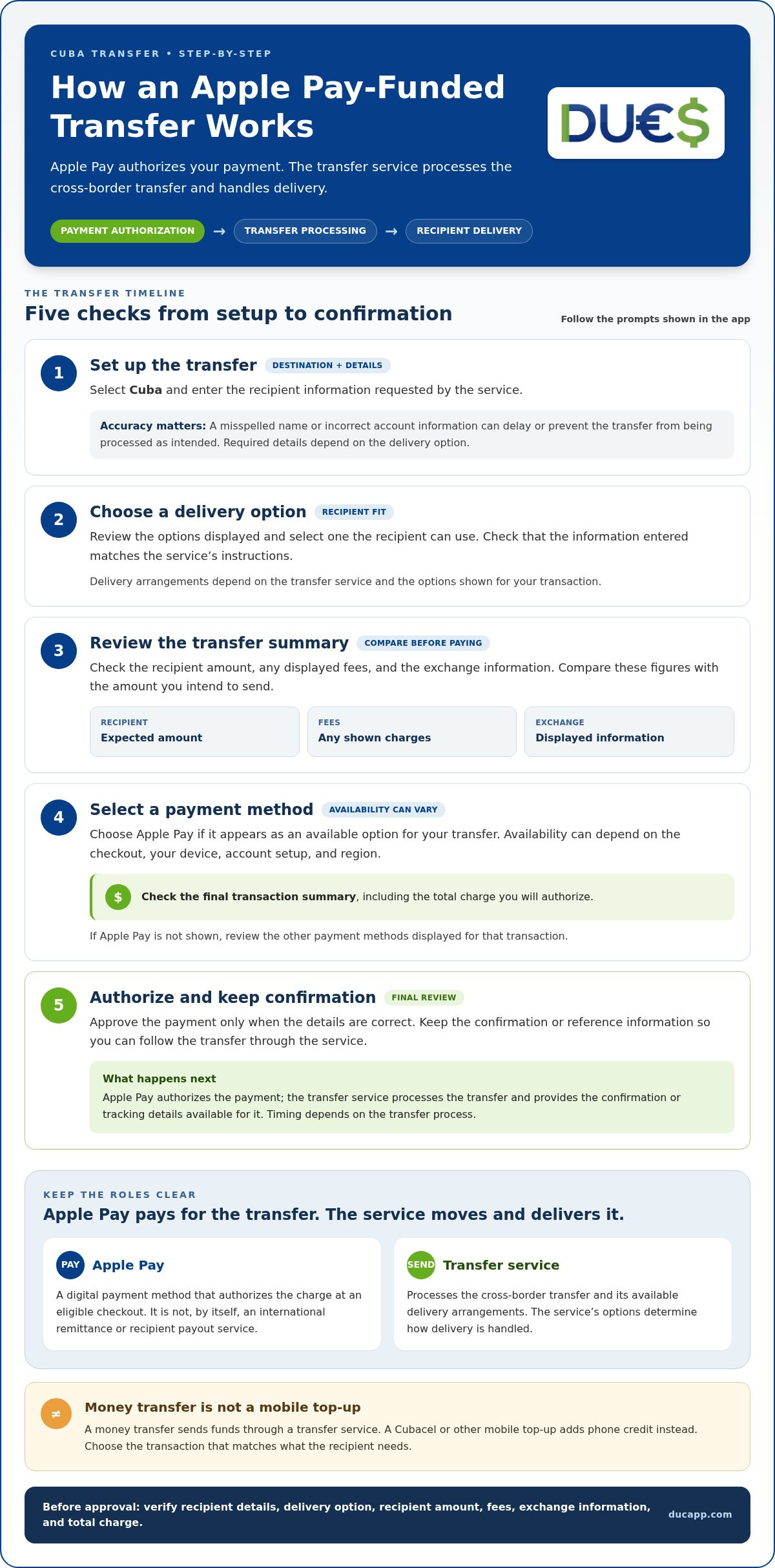
A transfer typically involves entering the recipient’s information, choosing an available delivery option, reviewing the transfer, and selecting a payment method. If Apple Pay is offered for that transaction, it authorizes payment. The transfer service processes the cross-border transfer and provides the confirmation or tracking details available for it.
Apple Pay approves the payment; the transfer service processes the transfer to the recipient. Screen names and steps can change, so follow the prompts shown in the app rather than expecting a particular button label.
Prepare the recipient and transfer details
Select Cuba as the destination and enter the recipient details requested by the service. Accuracy matters: a misspelled name or incorrect account information can delay or prevent the transfer from being processed as intended. The details required depend on the delivery option, so follow the in-app instructions.
Review the delivery options displayed and choose one the recipient can use. Confirm that the information you entered matches what the service requests. If you’re sending from the United States, review the applicable U.S. Treasury regulations for Cuba alongside the service’s instructions.
Choose Apple Pay and review the payment
Apple Pay availability can depend on the checkout, your device, account setup, and region. Select it if it appears as an available payment option for your transfer. If it isn’t shown, review the other payment methods displayed for that transaction.
- Set up the transfer: Select Cuba and enter the recipient information requested.
- Choose delivery: Review the options displayed and select one intended for your recipient.
- Check the transfer summary: Review the amount the recipient is expected to receive, any displayed fees, and the exchange information. Compare these with the amount you intend to send.
- Select payment: Choose Apple Pay if it’s available, then check the final transaction summary, including the total charge.
- Authorize and save confirmation: Approve the payment only when the details are correct. Keep the confirmation or reference information so you can follow the transfer through the service.
Take time with the final review. Fees and currency conversion can affect what the recipient receives, so compare the figures before authorizing. The transfer proceeds from recipient details to delivery selection, payment authorization, and service confirmation. Timing depends on the transfer process.
DUC supports Apple Pay for transfers focused on Cuba. Explore the transfer flow on DUC’s Cuba transfer platform.
Compare the Details That Matter Before Sending Money to Cuba
A convenient checkout is only one part of a transfer. Before you send money to Cuba with Apple Pay, compare the full transaction summary with the recipient’s needs. A headline fee or familiar payment method won’t tell you on its own how much the recipient is expected to receive or which delivery option applies.
| What to compare | What to review before approval |
|---|---|
| Payment method | Check whether Apple Pay or another payment option is available for this transaction. |
| Total charged | Review the final amount you’ll authorize, including any fees shown in the summary. |
| Recipient amount | Check the amount the recipient is expected to receive and the currency displayed. |
| Delivery option | Confirm the selected method matches what the recipient can use. |
| Tracking | Look for the confirmation or reference details the service provides to follow the transfer. |
Fees, exchange information, and the recipient amount
The total charged is what you authorize. The recipient amount is what the transfer summary says the recipient is expected to receive. These figures can differ because fees and currency conversion may affect the final amount. Review the displayed fee and exchange information, then compare the total charged with the recipient amount.
For a useful comparison, keep the conditions consistent: use the same send amount, destination, and delivery option wherever possible. Compare final summaries, not just headline fees. If an option displays less information, don’t assume that means there are no costs or currency conversion involved.
Payment convenience versus delivery preferences
Apple Pay can make checkout familiar, but it doesn’t decide how funds reach the recipient. Delivery choices are set out by the transfer service and may vary by transaction. Check that the option shown suits your recipient before focusing on which payment method is easiest for you.
Apple describes its payment privacy and security features in its overview of how Apple Pay keeps transfers secure. Those features relate to the payment method; they don’t guarantee transfer processing or recipient delivery. For another way to fund a transfer, compare the considerations in this guide to sending money to Cuba with a credit card.
Is Apple Pay Safe and Reliable for a Cuba Money Transfer?
Apple Pay can authorize a payment when it’s offered at checkout, but it can’t guarantee that a Cuba transfer will be processed or delivered. Reliability involves three separate stages: payment authorization, transfer processing by the service, and delivery to the recipient.
That distinction matters when you send money to Cuba with Apple Pay. A successful payment authorization doesn’t confirm that the recipient has received the funds. Check the transfer status through the service and use its confirmation details to see what has happened at each stage.
What Apple Pay can and cannot reassure you about
Apple Pay is the payment method. If it appears as an option and your payment is authorized, the checkout has accepted the payment request. That doesn’t establish that the transfer service has completed processing or that the recipient has received the funds. It also doesn’t promise a particular delivery timeframe.
The transfer service processes the remittance and provides the transaction information available for following it. Don’t treat the presence of Apple Pay as a promise of speed, a refund, or successful delivery. Review the service’s displayed terms and transaction status for updates about your transfer.
How to reduce avoidable transfer mistakes
Before authorizing payment, compare the recipient information with the details they provided, confirm the selected delivery option, and read the final summary. Afterward, keep the confirmation or reference information and check the transfer status using the service’s available tracking tools.
- Before payment: Verify recipient details, delivery selection, and the final transaction summary.
- After authorization: Save the confirmation and check the status shown by the transfer service.
- If something looks wrong: Use the service’s transaction information to identify the issue before taking further action.
These steps can’t control every part of cross-border processing, but they help you catch incorrect details early and follow the transaction with clearer expectations. For more background on payment tools, read this secure digital wallet guide.
DUC supports Apple Pay for transfers focused on Cuba. Review your transfer details on DUC’s Cuba transfer platform before authorizing payment.
Send Money to Cuba with Apple Pay Through DUC App
DUC is a transfer platform focused on sending money to Cuba, and Apple Pay is one of its supported payment methods. When you send money to Cuba with Apple Pay through DUC, Apple Pay authorizes payment while DUC processes the transfer. The two have separate roles: one is the payment method, the other is the transfer service.
App wording and screens can change, so follow the current prompts rather than relying on a specific button name. Review each stage before approving payment.
What to expect when using DUC App
Start a money transfer to Cuba in DUC App and enter the recipient information requested. Review the delivery options shown for that transfer and select one that suits the recipient. At checkout, choose Apple Pay if it appears as an available payment method. Before authorizing, review the transaction summary, including the total charged, recipient amount, any displayed fees, and exchange information.
DUC processes international transfers; Apple Pay doesn’t deliver funds to the recipient. A money transfer is different from an international mobile top-up: a top-up adds phone credit, such as Cubacel credit, rather than sending money through a transfer option. For broader context, read this guide to online money transfers to Cuba. If you’re exploring peer-to-peer transfers, see the P2P money transfer app guide.
A clear next step for your transfer
Before confirming, make sure the recipient details are accurate and the selected delivery option matches what they can use. Check the final payment summary, then save the confirmation information provided by the service. Use it to refer to the transaction later. Apple Pay availability can depend on your device, account, and region, so select it when it appears at checkout.
To start, open DUC App, enter the recipient and transfer details, and review the final summary before authorizing payment. This gives you a clearer view of what you’re paying and what the recipient is expected to receive.
Make Your Cuba Transfer with Clarity
You can send money to Cuba with Apple Pay by using Apple Pay to fund a transfer through a service that processes delivery. Apple Pay authorizes the payment; it doesn’t send funds to the recipient on its own. Keep that distinction in mind as you review your options.
Before authorizing a transfer, check the recipient information, available delivery choice, total charged, and amount the recipient is expected to receive. Fees and currency conversion can affect that final amount, so read the transaction summary carefully. Also make sure you’re setting up a money transfer, not a mobile top-up.
DUC App supports Apple Pay among its payment methods and provides international transfers focused on Cuba. Enter your transfer details, then review the payment and recipient information before confirming. Start your Cuba transfer with DUC App.
Frequently Asked Questions
Can I send money to Cuba directly with Apple Pay?
No. Apple Pay authorizes payment but isn’t a standalone international remittance service that delivers funds to someone in Cuba. To send money, use a transfer service that supports Cuba and offers Apple Pay as a payment option for your transaction. The service processes the remittance and provides the available delivery options. Review the transaction details before paying so you know what the recipient is expected to receive.
Does DUC App accept Apple Pay for transfers to Cuba?
Yes. DUC App supports Apple Pay among its payment methods and provides international transfers focused on Cuba. Apple Pay is the payment method; DUC processes the transfer. At checkout, select Apple Pay if it appears as an option, then review the recipient information and transaction summary before authorizing payment. The options shown depend on the transaction and payment eligibility, so follow the current in-app details.
How do I send money to Cuba using Apple Pay?
To send money to Cuba with Apple Pay, start a Cuba transfer in a service such as DUC App, enter the requested recipient details, and choose an available delivery option. Review the recipient amount, fees, exchange information, and total charge. If Apple Pay appears at checkout, select it and approve only after checking the summary. Save the confirmation details and use the service’s available status information to follow the transfer.
How much does it cost to send money to Cuba with Apple Pay?
The cost depends on the transfer details shown by the service, so there isn’t one universal price. Before authorizing payment, review any displayed service fee, the total charge, and currency-conversion information. Compare the amount you’ll pay with the amount the recipient is expected to receive. Apple Pay is the payment method; transfer fees or conversion costs depend on the service and transaction.
Is Apple Pay available for every Cuba money transfer?
No. Apple Pay may not appear for every transfer. Availability can depend on the service’s checkout options, your device, account setup, and region. Check the payment methods displayed for your specific transaction. If Apple Pay is available, review the final summary before approving. Apple Pay support in general doesn’t mean it will be offered for every sender or transfer.
Can the recipient in Cuba receive the money through Apple Pay?
Apple Pay is used by the sender to authorize payment; it doesn’t deliver the transfer to the recipient. The transfer service processes the remittance and presents the delivery options available for the transaction. Before paying, choose an option the recipient can use and check the amount they’re expected to receive. A mobile top-up is different: it adds phone credit rather than sending money through a transfer.
Is sending money to Cuba with Apple Pay safe?
Apple Pay can authorize a payment, but it doesn’t guarantee that a transfer will be processed or delivered. Treat payment authorization, transfer processing, and recipient delivery as separate stages. Reduce avoidable errors by checking the recipient details and final summary before approving, then saving the confirmation and reviewing the transfer status through the service. Follow the transaction information provided by the transfer service for updates about delivery.


